What it is#
You chose a slot for a one-off job, by tapping the diary or picking a start time, and the add button is greyed out or the sheet tells you to choose another slot.
The short answer: the job, plus its loading time, must fit between the start you chose and the next visit or break on that team member's day. If the start falls inside a visit or the break, or the next one begins before the job would end, the slot is refused. A job that only runs past the end of the day is allowed, with a warning.
When to use it#
Use these checks when the sheet will not let you add a job where you want it.
How to do it#
- Read the line above the add button. It names the problem:
- "That time is during" a visit or a break means the start falls inside it. Choose a later start or another slot.
- "This slot has" some time "free before" a visit or a break means the gap is too short for the job.
- "It fits using" some flex, or "will run" some time "over", means it runs past the normal end of the day. You can still add it.
- For a gap that is too short, press Move later visits to fit. The sheet lists exactly which visits, and the break if needed, move later and by how much. Nothing moves until you add the job.
- Check the day itself. The app refuses a day that has already passed, a team member with no working hours that day, and a time outside the team member's day even with flex.
- For a team member with no hours that day, use Add one-off hours or a day for a team member on the diary first, then come back.
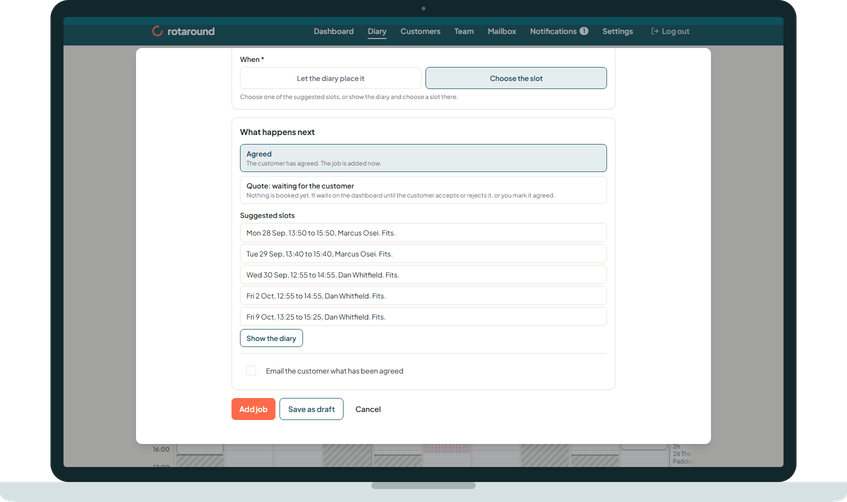
- To let the app find a slot instead, press See suggested slots instead, or choose Choose the slot and pick from Suggested slots. Slots that cannot hold the job are never offered.
What your customer sees#
Nothing until the job is added. Then, if you tick the email, they get the day and the morning or the afternoon, never a clock time. If Move later visits to fit moved a confirmed visit from the morning to the afternoon, or the other way, that customer gets a new visit confirmation.
What happens next#
When the job is added, it is booked where you chose and pinned there. Any visits you moved to fit are saved at the same time. If the job is today or tomorrow, the team member is emailed straight away.
Good to know#
- The length checked is the job's hours plus the Loading and unloading time (minutes per visit) set in Settings under Scheduling.
- Move later visits to fit is offered for one-off jobs only. For a regular visit placed or moved by hand, the same lines say "visit" instead of "job", and you choose another slot.
- The diary itself never places a job today. You can choose today yourself.
- The rule is the same in automatic mode ("Let the diary plan itself") and self mode ("I place visits myself").
Related articles#
Not what you needed? Contact us and say what you were trying to do.