What it is#
A one-off job is work you do once and do not repeat, such as clearing the gutters or cutting back a hedge. It sits in the diary alongside your regular visits, goes to one team member, and is invoiced like any other visit.
When to use it#
Use it when a customer asks for work outside their regular service, or when a new customer wants a single job. If the work will repeat, add a regular service instead. If the customer has not agreed yet, send it as a quote.
How to do it#
- Press Add a one-off job on the dashboard or the diary. You can also tap an empty slot on the diary, which opens the same sheet with the day, the team member and the start filled in.
- Under Who is it for?, choose An existing customer and pick them from Choose the customer, then choose the property. For someone new, choose A new customer and fill in their details and address.
- Under The job, write What is the job?, the Hours it takes, and the Billing type: Fixed price with a Price (£), or Hourly rate.
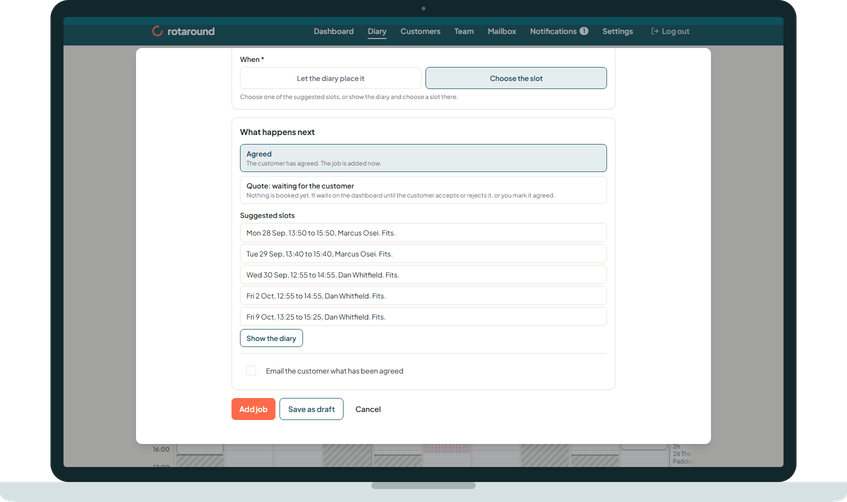
- Under What happens next, choose Agreed if the customer has already said yes. Choose Quote: waiting for the customer if they have not.
- For an agreed job, choose When:
- Let the diary place it, and set Within the next so many days (7 unless you change it). The diary finds the slot from tomorrow onwards.
- Choose the slot, and pick one of the Suggested slots. Each one says whether it fits or needs flex. To see the week instead, press Show the diary and tap a free slot.
- If the slot you want is a gap that is too short, press Move later visits to fit. The sheet lists exactly what moves before anything is saved.
- Tick Email the customer what has been agreed if you want them to have it in writing.
- Press Add job. To finish later, press Save as draft instead.
What your customer sees#
If you ticked the email, the customer gets an email from your business headed Your booking with your trading name. It says where the work will be done and on which day, and, once the job has a slot, whether to expect you in the morning or the afternoon. It never gives a clock time. There is nothing for them to do.
When the job is confirmed in the diary, the customer's own page shows it with its day and the morning or afternoon.
What happens next#
A job you chose the slot for is booked there at once and does not move by itself. A job you left to the diary is placed at its next planning pass, and you are told where it went. If it could not be placed within the days you gave, it waits on Waiting to be scheduled with a suggested slot.
The team member sees the job on their page. If it is today or tomorrow, they are emailed straight away.
Good to know#
- In self mode (Settings, Who places the visits, set to I place visits myself), the first choice under When is Add to Waiting to be scheduled instead of letting the diary place it. The job then waits for you to choose its slot.
- The diary itself never places a job today. You can choose today yourself with Choose the slot.
- A quote for a job asks On a day or Any day between instead, because nothing is booked until the customer accepts.
- If the customer has no email address, nothing can be sent and the sheet says so.
Related articles#
Not what you needed? Contact us and say what you were trying to do.