What it is#
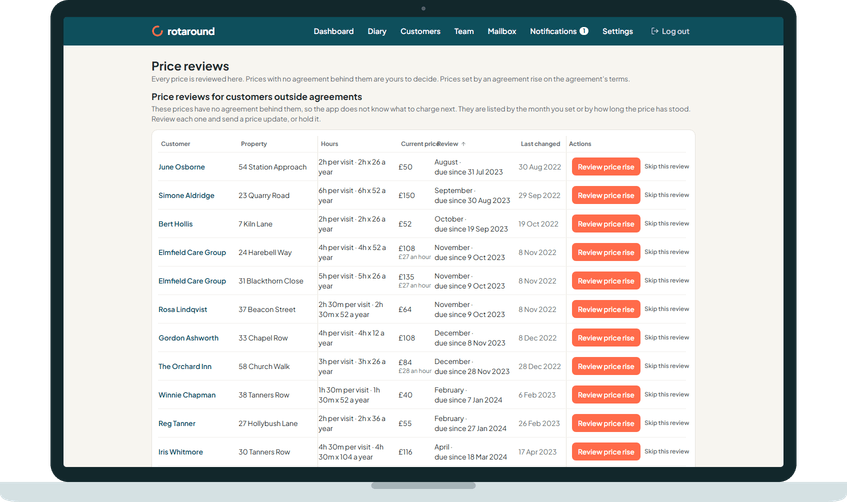
Prices go stale if nobody looks at them. The Price reviews page lists every price that is due for a review, in two sections.
- Price reviews for customers outside agreements: prices with no agreement behind them. The app does not know what to charge next, so you decide.
- Price reviews set by agreement: rises set by a customer's signed agreement. The amount, the date and the notice come from the agreement, and the app prepares each one for you.
The page is not in the main menu. You reach it from the To do card on the dashboard, which reads, for example, "3 customers due a price review". The same card sits at the top of the Customers page.
When to use it#
Open it when the dashboard tells you a price review is due. Work down the first section and either send a price update or put the review off. Check the second section to see which agreement rises are going out and when.
How to do it#
- On the dashboard, under To do, press the price review card. It says how many customers are due.
- In the first section, each row is one customer, property and service. It shows the Current price, when the Review fell due and when the price was Last changed. The oldest reviews come first.
- To change a price, press Review price rise on the row. This opens Prepare price change, where you choose the new price and the date it starts.
- To leave a price as it is for now, press Skip this review and choose when it comes back.
- In the second section, each row is one prepared agreement rise with its New price, Review date and Status. If the status reads "Needs sending", press Send on the row. On a phone, press Open the rise to see it first.
- Press any column heading to sort or filter the list. On a phone the same choices sit above the cards.
What your customer sees#
Nothing from this page itself. The customer gets an email only when you send a price update, send an agreement rise notice, or tick to tell them a review has been put off.
What happens next#
A price you change leaves the first section, and its review clock starts again from the new price. A deferred review comes back on the date you chose.
An agreement rise stays in the second section with its status, such as "Sends automatically on" a date or "Sent" with the date it takes effect. It leaves the list 30 days after the new price starts.
Team members see nothing. Their page shows no prices.
Good to know#
- When a price falls due is set in Settings, under Price reviews: by Price age or by Annual review month.
- Whether agreement rises send themselves or wait for you is set in Settings, under Agreements, at Agreement price rises.
- A customer with a signed agreement in force only appears in the first section for a service you kept outside the agreement.
- Each service has its own review clock, so one customer can have several rows.
- You can also start from the customer's record: press Review price, then Prepare a price rise, or Reviewed, holding price to keep the price and restart the clock.
- The page works the same in automatic mode and self mode.
Related articles#
Not what you needed? Contact us and say what you were trying to do.