What it is#
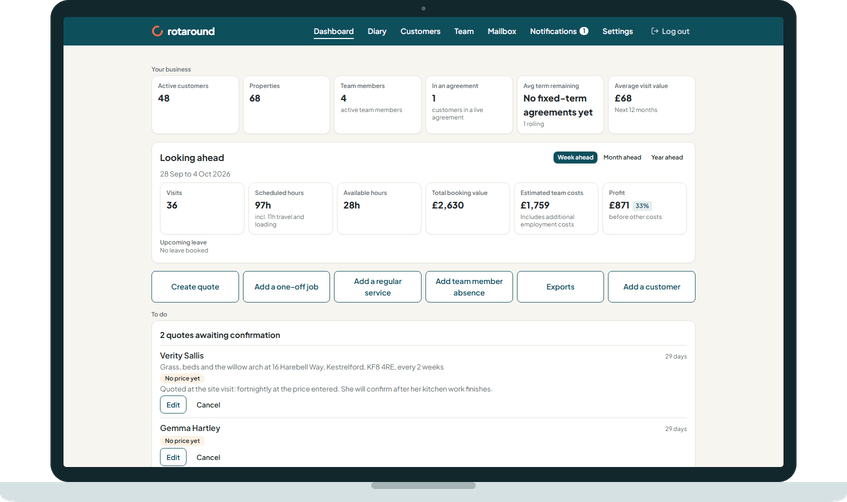
A quote is work the customer has not agreed to yet. Nothing is booked. The customer gets an email with the details and the price, and accepts or rejects it online. There is no separate Quotes screen: pending quotes live on the dashboard, at the top of the customer's record, and on the Customers page under the Status filter Quote pending.
When to use it#
Use it when a customer or a new enquiry wants to know the price before committing. If they have already said yes, add the work as agreed instead.
How to do it#
- Press Create quote on the dashboard or the diary, or choose Create quote from the property's Add menu on the customer's record.
- Under What is the quote for?, choose Regular service or One-off job, then fill in the customer, the property, the work and the price. For a job, choose On a day or Any day between.
- Under What happens next, choose Quote: waiting for the customer.
- Tick Send the quote to the customer. You can change the wording under The email the customer receives.
- Press Send quote. Without the tick the button reads Save quote, which records the quote without sending it.
To follow up, find the quote in the To do box on the dashboard, under the heading that counts the quotes awaiting confirmation, or at the top of the customer's record:
- Press Chase to send the quote email again.
- Press Confirm if the customer said yes another way, such as by phone.
- Press Edit to change it. Press Cancel to withdraw it, give a reason if you want, then press Cancel the quote.
What your customer sees#
An email from your business headed Your quote from your trading name, with the date it was prepared, the details, the price, and Accept and Reject buttons.
The quote page shows the service, the property, how often, the price and when the first visit is from. A job shows the job and when instead. They press Accept, or open Reject, add a reason if they like, and press Reject. If you edited the quote after sending, the page says it has changed and shows the current version.
After answering, they see Thank you, or That is recorded. The page shows dates only, never a clock time. A cancelled quote sends no email; its link shows that the quote is no longer open.
What happens next#
You get a notice and an email saying the customer accepted or rejected the quote, with any reason they gave.
When a quote is accepted or confirmed, the work is added. In automatic mode ("Let the diary plan itself") the diary places the visits at once. In self mode ("I place visits myself") they wait on Waiting to be scheduled. The team member sees the visits once they are placed.
Cancelled and rejected quotes move to Quotes that did not go ahead, reached from the Customers page. It lists the customer, what was proposed, when, the status (Cancelled by you or Rejected by the customer), the date it ended and any note. You can download it as a CSV or XLSX file.
Good to know#
- A quote with no price shows No price yet. It cannot be chased or confirmed until you add a price.
- Each pending quote shows how long it has been waiting.
- A quote is not a signed agreement. Send the agreement from the customer's record once they accept.
- If the customer has no email address, nothing can be sent.
Related articles#
Not what you needed? Contact us and say what you were trying to do.