What it is#
A new account works with sensible defaults, but five of them shape how your diary runs and what your customers receive. Most are in Settings. Working hours are on each team member's record.
When to use it#
Check these once, before you add your customers and before the diary starts planning. You can change any of them later.
How to do it#
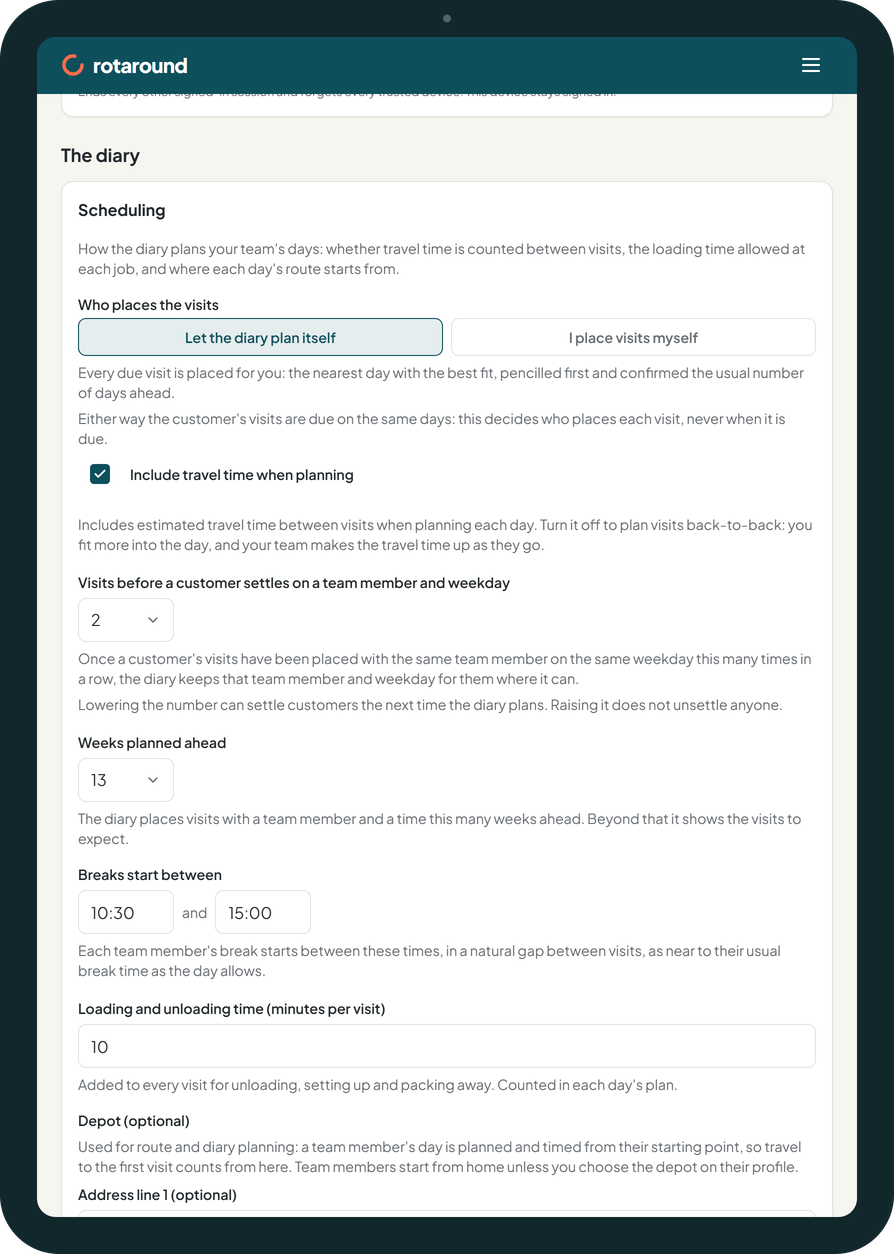
- In Settings, under Scheduling, look at Who places the visits. Let the diary plan itself places every due visit for you. I place visits myself shows what is due and leaves you to place each visit. New accounts start with the diary planning itself. Press Save scheduling if you change it.
- On the same card, check Breaks start between and the second time. Each team member's break starts inside this window, in a natural gap between visits. The window is 10:30 to 15:00 unless you change it. Press Save scheduling.
- Open Team, press a team member's name and open Standard working hours. Tick the days they work and set Start, End, Lunch, Breaks and Break at for each day. Press Save working hours. Do this for each team member, including yourself if you work on site.
- In Settings, under Customer emails, look at Notify customer of visit by email. It is off to start with, so your customers are not emailed about their visits until you tick it. Press Save customer notifications if you change it.
- In Settings, under Payment terms, set how many days every customer has to pay an invoice. It is 14 days unless you change it, up to 90. Press Save payment terms.
What your customer sees#
With Notify customer of visit by email off, nothing. With it on, each customer gets an email when a visit is confirmed. It gives the date and says whether to expect you in the morning or the afternoon, never a clock time. You can change the wording under Your visit email once the tick is on.
The payment terms set the due date on the invoices you download for your accounting software.
What happens next#
The diary plans with these settings at its next planning pass. Working hours are the time each team member can be booked, so nobody is scheduled until their hours are saved. Breaks are placed as blocks between visits, as near to each team member's Break at time as the day allows.
The team member sees their days and their break on their own page and in their team emails.
Good to know#
- Either way the customer's visits fall due on the same days. The mode decides who places each visit, never when it is due.
- In automatic mode, visits are pencilled first and confirmed the usual number of days ahead. In self mode nothing is pencilled, confirmed or emailed until you place it.
- How far ahead visits are confirmed is set under Customer emails, with Confirm visits. It is 4 days ahead unless you change it.
- When Notify customer of visit by email is on, Allow customers to reply with updates is ticked too. Replies are then added to the visit's notes.
- On each working day, flex lets a team member start earlier or finish later, but only when a visit cannot otherwise fit.
- Invoice numbering and the file for your accounting software are on the Exports page, not in Settings.
Related articles#
Not what you needed? Contact us and say what you were trying to do.