What it is#
Your diary plans ahead in pencil, then confirms each visit as its day gets close. A confirmed visit keeps its day and its team member. If you switch the visit email on, the customer is emailed when their visit is confirmed.
When to use it#
Set this up once, when you start. Come back to it if you want customers told earlier or later, or want to change the wording of the email.
How to do it#
- Open Settings and go to Customer emails, under Customers.
- Under Confirm visits, choose how visits are confirmed:
- A set number of days ahead, then set Confirm visits ahead (4 unless you change it, up to 14).
- Weekly, on a set day, then choose the day in Confirm the next seven days every (Sunday unless you change it).
- Tick Notify customer of visit by email. It is off for a new account, so no customer is emailed until you tick it.
- Leave Allow customers to reply with updates on if you want replies to reach you.
- Under Your visit email, change the Subject and Email wording if you want to. Press Insert to add a blank: Customer name, Visit date, Morning or afternoon or Business name. The preview shows the email as it will send.
- Press Save visit email. To go back to the standard wording, press Reset to standard wording.
- Press Save customer notifications.
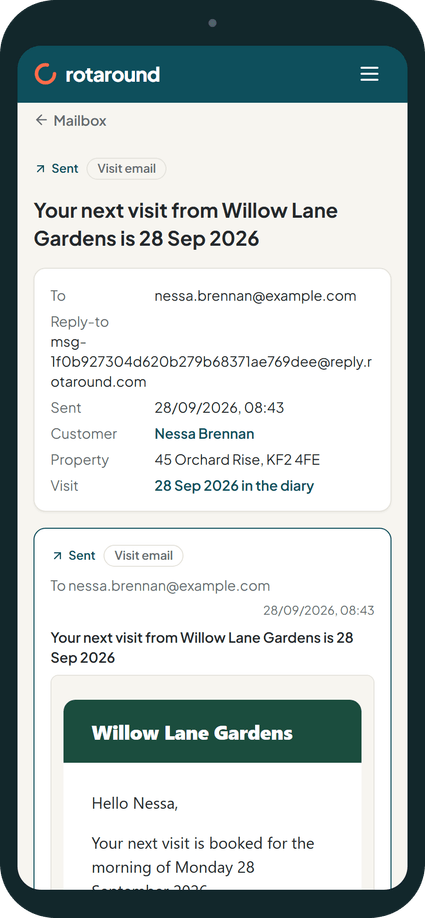
What your customer sees#
An email from your business headed "Your next visit from" your trading name, with the date. It says the visit is booked for the morning or the afternoon of that day. It never gives a clock time. The footer has a link to turn visit emails off.
What happens next#
Each night the app confirms the visits that fall inside your window and emails each customer once for that day and half of the day. If you switch the email on later, visits already confirmed inside the window are emailed at the next nightly check.
A visit you place by hand inside the window is confirmed and emailed at once.
Good to know#
- The wording must keep the Visit date and Morning or afternoon blanks. There is no blank for a clock time.
- Replies to a visit confirmation always come back to your Mailbox. Allow customers to reply with updates decides whether replies to a cancellation email reach you too.
- In automatic mode ("Let the diary plan itself"), visits are pencilled and then confirmed by the window you set.
- In self mode ("I place visits myself"), nothing is pencilled, confirmed or emailed until you place the visit.
- When you place or move a visit yourself, a tick lets you email the customer even with the switch off.
- A customer who has opted out, or has no email address, is not emailed.
Related articles#
Not what you needed? Contact us and say what you were trying to do.