What it is#
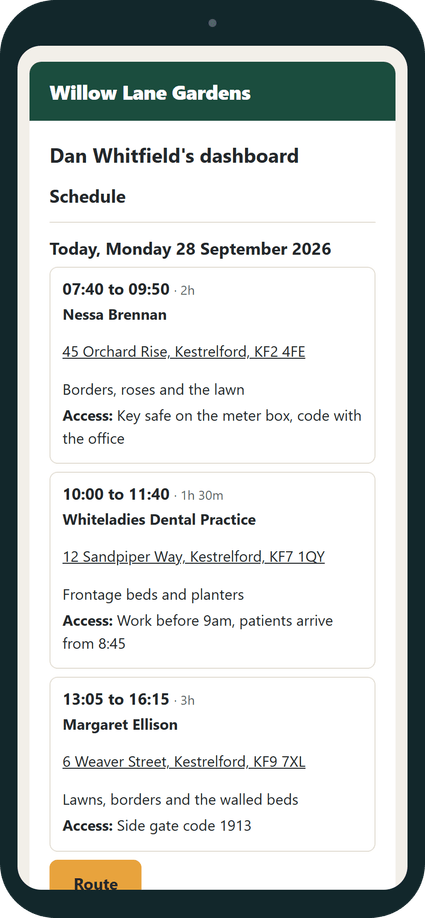
Each team member has their own page, opened from a secure link with no login. It shows today and the next seven days: each visit's time and length, the customer, the full address, what is being done, access instructions, whether keys are held and the day's route. Nothing on it can move a visit. From it they can report sickness or request leave, choose how they are told about changes, and add the page to their phone's home screen.
When to use it#
Send the link once you have set a team member's hours. Revoke it when a phone is lost or someone should no longer see the schedule.
How to do it#
- Open Team, press the team member's name and find the Team member page card.
- Press Send link to email them their link. Open page shows the page as they see it, and Copy link copies it.
- To stop the link working, press Revoke. Nothing is sent.
- To stop the old link and email a new one, press Revoke and re-issue.
- To make every device they use check again, press Reset access. Their link keeps working, but each device needs a new code next time.
- Untick Receives team emails to stop their team emails altogether.
- On Team member profile, the What this team member receives card lets you untick single emails or notifications for them. Press Save.
When a team member reports sickness or requests leave, a card appears on your dashboard. For sickness, press Cancel their day, Record the absence or Dismiss. For leave, press Approve or Decline.
What your customer sees#
Nothing. The page is for your team only.
What happens next#
The team member opens the link on their phone. On a new device, or one not used for 30 days, they are asked to check it is them: a six-digit code is emailed to them and lasts 15 minutes. The device is then remembered for 30 days. You are told the first time they open the page.
Their team emails follow Settings, under Team emails: the Week ahead email, the Daily email on their working days, and Change emails when a visit today or tomorrow is cancelled, moved, added or changed. They also get an email when a customer changes access instructions or sends a request about a visit today or tomorrow, and the answer to their leave request if you ticked it.
Good to know#
- The team member sees clock times for their visits. Customers never do.
- A pencilled visit shows as provisional on their page. The daily email lists confirmed visits only.
- Requests change nothing in the diary until you act on them. Dismiss sends nothing to the team member.
- The team member can choose a phone notification instead of an email once they have set up the app on their phone. They cannot switch both off.
- Revoke all team links on the Team page stops every link at once and can send everyone a new one.
- The link stops working when the team member is archived or their end date arrives.
- A team member with no email address cannot be sent a link or a code.
- The page works the same in automatic mode and self mode.
Related articles#
Not what you needed? Contact us and say what you were trying to do.