What it is#
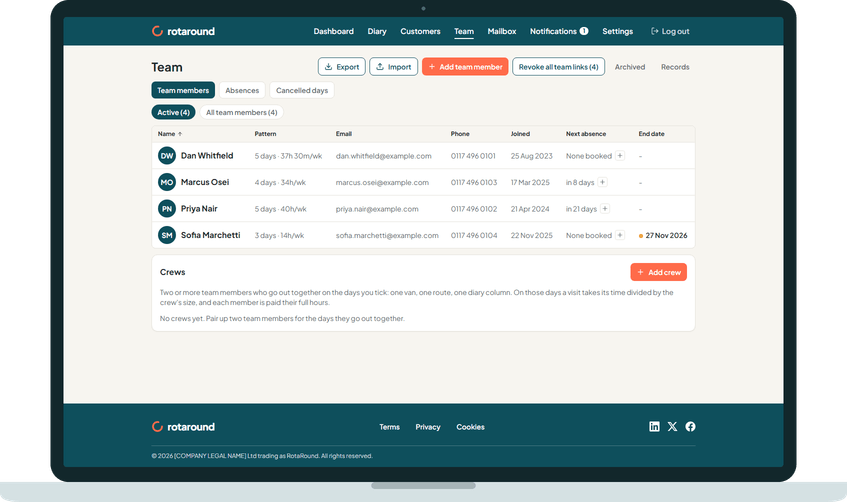
Every person who does visits for your business is a team member. The Team page lists them all with their weekly pattern, email, phone, the date they joined, their next absence and any end date. Each team member has a record that holds their hours, leave, pay and their link to their own page.
When to use it#
Add a team member before you give them visits, including yourself if you work on site. Open their record whenever their hours, leave, contact details or pay change.
How to do it#
- Open Team from the menu. The Team members tab lists everyone. Use Active or All team members to choose who is shown, and press a column heading to sort or filter.
- Press Add team member.
- Fill in Team member information: first name, last name, email and phone are required. The address and the Start date (optional) are not.
- Under Pay and holiday (private to you), add their pay and Holiday allowance (days per year) if you want. Add any Notes (private to you).
- Press Add team member. The record opens on the hours tab, ready for you to set their working hours.
- To open someone later, press their name on the Team page. Their record has four tabs: Standard working hours, One-off extra hours, Absences and Team member profile.
- To archive or delete someone, open Team member profile and use the Archive or delete this team member card at the foot.
What your customer sees#
Nothing. This is for you only. Customers see the day and the morning or the afternoon of their visits, not your team list.
What happens next#
A new team member cannot be given visits until their working hours are set. The Team page shows Hours not set beside their name until you do. Once the hours are saved, the diary can use them at its next planning pass.
To give them their own page, send their link from the Team member page card on their record.
Good to know#
- Each team member needs an email address to receive their page link and their team emails. Without one, their record says their link cannot be verified.
- Export downloads the whole team as a spreadsheet, whatever filters are on.
- Archive hides a team member from your lists, takes them off their future visits and stops their page link working. Everything is kept and you can restore them from Archived. Restoring does not put them back on visits or reopen their link.
- Delete removes their personal details for good. What is kept afterwards is listed under Records.
- Nothing is archived or deleted until you tick the confirmation and confirm.
- The Team page also holds the Absences and Cancelled days tabs and the Crews card.
- The Team page works the same in automatic mode and self mode.
Related articles#
Not what you needed? Contact us and say what you were trying to do.