What it is#
Notifications are the app's messages to you: a customer accepts an agreement, a visit is missed, a day is overloaded, an email came back. They are listed on the Notifications page, and each kind can also email you or reach your phone.
When to use it#
Check the page when the number beside Notifications in the menu goes up. Change the settings when you get too many alerts, or want one you are not getting.
How to do it#
- Press Notifications in the main menu. The number counts unread notices that need you.
- Search, or filter by Type, About, Unread only and Dates. Press a row to open it. Press Mark all read to clear them.
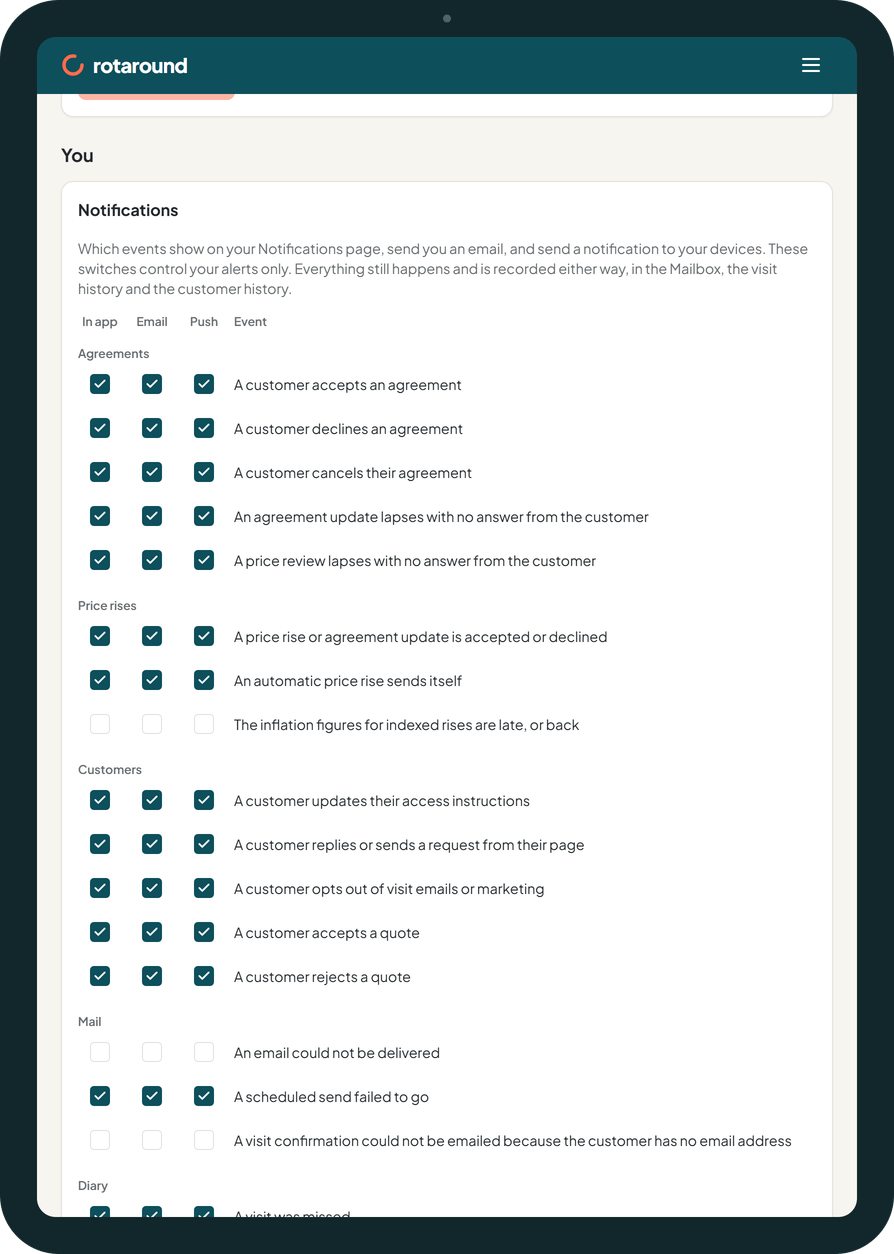
- To choose what you get, open Settings and go to Notifications, under You.
- Each event has three ticks:
- In app: it shows on the Notifications page.
- Email: you get an email.
- Push: it reaches your phone or computer.
- Tick or untick what you want, then press Save notifications.
- For push on a phone or tablet, go to App on this device, just above, and press Set up the app on this device. It shows how to add RotaRound to your home screen, then asks the phone to allow notifications.
What your customer sees#
Nothing. Notifications are for you only.
What happens next#
The events are grouped under Agreements, Price rises, Customers, Mail, Diary and Team. Turning a switch off only quiets your alert. Everything still happens and is recorded in the Mailbox, the visit history and the customer history.
Once a phone has allowed notifications, it is listed under Devices. Press Remove for one you no longer have.
Good to know#
- Some events are off for a new account. Worth knowing:
- An email could not be delivered is off, so failed and bounced emails do not show on the page until you tick In app for it. The Mailbox Outbox still shows them.
- A visit confirmation could not be emailed because the customer has no email address is off.
- A team member opens their page for the first time is off.
- A scheduled send failed to go and A customer opts out of visit emails or marketing are on.
- Sign-in and security emails always send, whatever you choose here.
- Setting up the app on a phone turns on push for every event that is on by default.
- In self mode ("I place visits myself"), a full settled day comes as a suggestion with a Move it button. In automatic mode the diary moves the customer by itself and tells you.
Related articles#
Not what you needed? Contact us and say what you were trying to do.