What it is#
Every visit in the diary goes to a team member, and the diary only books a team member inside their working hours. So each person who does the work needs a record with their contact details and their weekly hours. If you work on site yourself, add yourself too.
When to use it#
Use it when you start, before you add customers, and whenever someone joins. Team members are added one at a time.
How to do it#
- Open Team from the menu and press Add team member. The page New team member opens.
- Under Team member information, fill in First name, Last name, Email and Phone. These four are required. The email is where their schedule and team emails go.
- Add their address and Start date if you want them on record. Both are optional.
- Under Pay and holiday (private to you), choose the Pay basis: Not recorded, Hourly or Salary. Then fill in the Hourly rate (£) or Annual salary (£), the Additional employment costs (%) and the Holiday allowance (days per year). These figures work out each team member's profitability. They are not used for payroll.
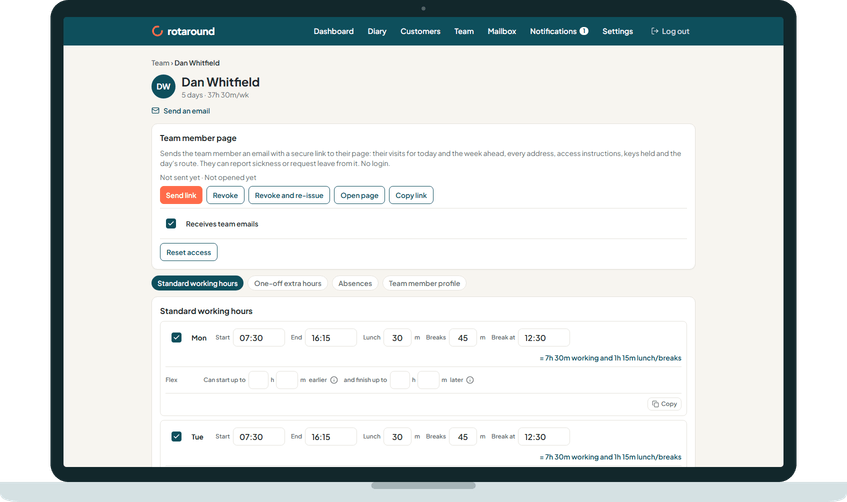
- Add anything else under Notes (private to you), then press Add team member. Their record opens on Standard working hours.
- Tick each day they work and set Start, End, Lunch and Breaks in minutes, and the Break at time. A newly ticked day starts at 08:00 to 16:00 with 40 minutes lunch and 20 minutes breaks.
- To give other days the same hours, press Copy under a day, tick the days to fill and press Apply.
- Press Save working hours.
What your customer sees#
Nothing. This is for you only.
What happens next#
The diary can now book visits to this team member inside their hours, from its next planning pass. Their lunch and breaks become one break block, placed between visits inside your break window in Settings.
Nothing is sent to the team member when you add them. Once they have visits, they get the team emails set in Settings under Team emails: the week ahead, the daily email and change emails. You can send them the link to their own page from their record.
Good to know#
- Until hours are saved, the team member shows Hours not set on the Team page and cannot be scheduled.
- Each working day also has a flex row. It lets the team member start earlier or finish later, up to 4 hours each way, but only when a visit cannot otherwise fit.
- On the record, Starts the day from chooses Home or The depot. The depot address is set in Settings under Scheduling.
- You can add a photo after saving.
- Hours work the same way in automatic mode and self mode. In both, they are the time the diary can use.
- To add hours for one day only, or to record time off, use One-off extra hours or Absences on the record.
Related articles#
Not what you needed? Contact us and say what you were trying to do.