What it is#
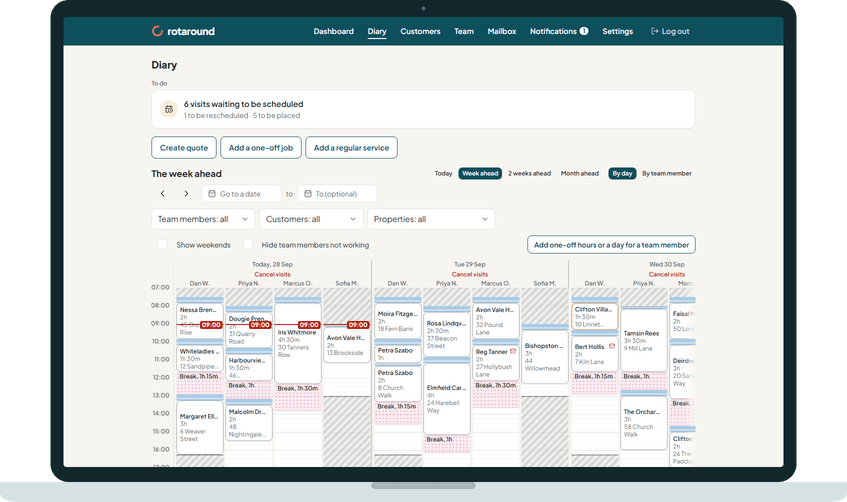
The Diary shows every team member's day as a time grid, with each visit drawn as a block. The same calendar also sits on the dashboard, but only the Diary page has the arrows, the date fields and the filters.
When to use it#
Use it to see who is where and when, to spot a full or overloaded day, and to find a free slot for new work. Use it too to look further ahead at the visits you can expect.
How to do it#
- Open Diary from the main menu.
- Choose a range: Today, Week ahead, 2 weeks ahead or Month ahead. These show 1, 7, 14 and 28 days. There is no year range.
- To look further ahead, use Go to a date and, if you want a span, To date (optional). You can open any span up to a year ahead. The Next and Previous arrows move the dates along.
- Choose By day to see each day with all team members side by side, or By team member to see one team member's days together. This choice is hidden on a one-day view and beyond the planned window.
- To narrow the diary, use the Team members, Customers and Properties filters, and Clear filters to remove them. On a phone these sit behind one Filters button, which opens a full screen with a Done button.
- Tick Show weekends to show Saturday and Sunday. On the By day view, tick Hide team members not working to leave out anyone with no hours. Both ticks are remembered on that device.
- Read the key below the grid.
The key's entries, in order: Working hours, Non-working hours, Flex, Travel and loading, Breaks, On leave, Pencilled in (not confirmed), Confirmed, Overloaded, Extended by you, Due, not yet planned, Off pattern, Expected, Pinned and Now. Most entries appear only when that thing is in the dates you are looking at. Pinned and Now are always shown.
What your customer sees#
Nothing. The diary is for you only.
What happens next#
Nothing changes by reading the diary. Past the planned window, a line reads Planned up to and the date. Beyond it the diary shows the visits to expect as lighter blocks, drawn where they usually go. Nothing there is booked or fixed. A visit with no room that week is listed in a strip headed No room yet.
Each team member sees their own diary, read only, on their own page, with clock times.
Good to know#
- Weekends start hidden unless a team member works one of those days. If a hidden weekend day has visits, a note tells you to tick Show weekends.
- A whole empty day is labelled Non-working hours, On leave or Closed (a cancelled day), never "Off".
- The foot of each column shows the hours planned against the hours possible.
- Weeks planned ahead in Settings, under Scheduling, sets where the planned window ends: 4 to 26 weeks, 13 unless you change it.
- In automatic mode ("Let the diary plan itself"), expected visits for a customer who has not settled yet show a guessed team member. In self mode ("I place visits myself"), the diary shows what is due and you place each visit when it is due.
Related articles#
Not what you needed? Contact us and say what you were trying to do.