What it is#
Each customer has their own page. It needs no login: the link itself is the key. On it the customer can see their planned and past visits, send you a note about their next visit, update their access instructions and read their agreement. It saves you answering "when are you next coming?" by phone or email.
When to use it#
Send the link when a customer starts with you, or whenever they ask when you are next due. Copy it if you want to paste it into a message of your own. Open it to see exactly what the customer sees.
How to do it#
- Open the customer's record and find the Customer page card near the top.
- Press Send link to email the link to the customer. The card needs an email address on the record; without one it says Add an email address to send the link.
- Press Copy link to copy it, or Open page to see the page yourself.
- Check the card's stamps. It shows when the link was sent and when it was opened, or that it has not been sent or opened yet.
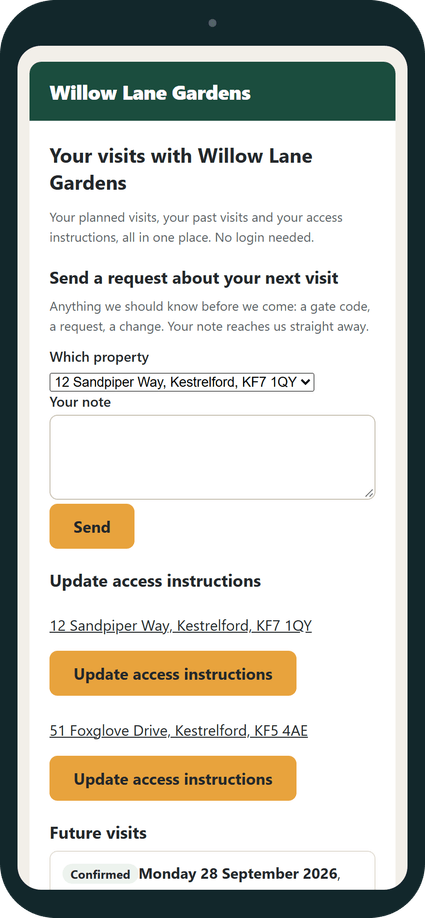
What your customer sees#
An email from your business with a secure link to their page. The page is headed with your trading name and has these parts, top to bottom:
- Send a request about your next visit: a box for a note, such as a gate code or a change. A customer with several properties chooses which one first. The note reaches you straight away, and the team member attending sees it.
- Update access instructions: one button for each property. A code is emailed to them first.
- Future visits and Past visits: each visit shows the day, Morning or Afternoon, how long it takes, the team member's first name or that one is to be arranged, the description, the price, and whether it is Confirmed or Planned. The page never shows a clock time.
- A line saying whether prices include VAT.
- Your agreement, if they have one.
- A section where they can stop visit emails, and turn them back on.
What happens next#
When the customer opens the page, the card on their record shows when. If they send a note, it reaches you and the team member sees it on their own page. If they turn visit emails off, you are told, and the record shows the change under Send visit emails to this customer.
Good to know#
- The card is hidden for a lead who is not yet a customer.
- The same page is where the link at the foot of every visit email goes. Following that link does not turn anything off: the customer has to press Stop these emails.
- Stopping visit emails stops confirmations and changes to visits. It does not stop pause emails, season reminders, agreement emails, price emails or the page link itself.
- A customer you have ended can still open the page. It says their account has ended and shows their past visits, read only.
- If a link may have reached the wrong person, revoke it. See Revoking links.
- The page is the same in automatic mode and in self mode.
Related articles#
Not what you needed? Contact us and say what you were trying to do.