What it is#
Sometimes a visit cannot go ahead: the customer asks you not to come, the weather turns or a team member is ill. Cancelling records that the visit will not happen, why, whether the customer is charged and whether they are told. You can cancel one visit, or every visit in a day, a team member's day or part of a day at once.
When to use it#
Cancel one visit when only that visit is affected, and a day or part of a day when something stops the work for longer. If the visit is simply going ahead on another day, move it instead.
How to do it#
To cancel one visit:
- On the Diary, tap the visit and press Cancel this visit (Cancel this job for a one-off job).
- Choose a reason under Reason (optional). For Other, write what happened.
- Tick Add to Waiting to be scheduled if the visit should be booked again on another day.
- Tick Charge the customer for this visit if the customer should still pay.
- Tick Email the customer about this cancellation to tell them.
- Choose Just this visit or This visit and all future visits, then press Cancel this visit.
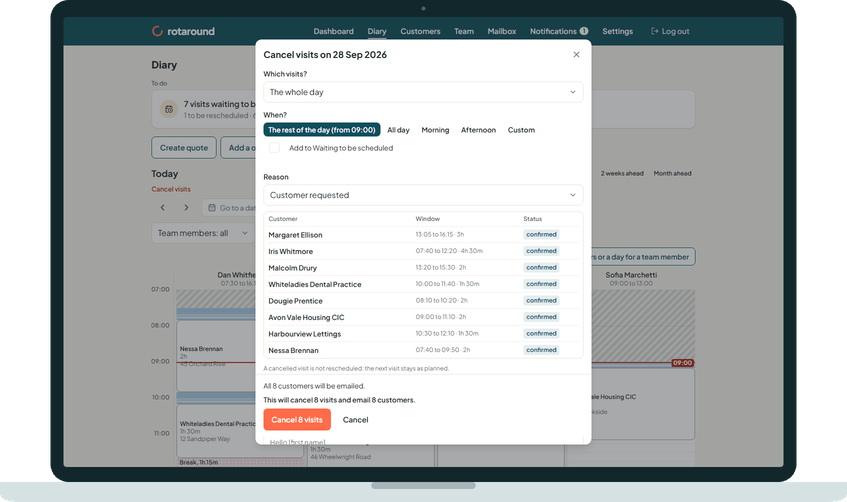
To cancel a day or part of a day:
- On the diary's one-day view, press Cancel visits, or on the week view press a day's heading or a team member's column heading.
- Under Which visits?, choose The whole day or one team member's day.
- Under When?, choose All day, Morning, Afternoon or Custom with a start and end time. For today you can also choose the rest of the day.
- Choose the Reason, and tick Add to Waiting to be scheduled if the visits should be booked again.
- Tick Email the customers about this cancellation and write The message every emailed customer gets. The sheet says how many will be emailed and why any will not.
- If the reason is Team member illness or a team member's absence, and one team member is chosen, tick Also record an absence for them to write the absence on their profile too.
- Check the list of visits, then press the button that names how many will be cancelled.
What your customer sees#
If you ticked the email, the customer is told their visit on that date is cancelled, and why. It then says you will rearrange it and email the new day, or that their next visit goes ahead as planned. A charged cancellation says the visit is still charged. It gives the date only, never a time.
What happens next#
The visit is listed on Missed visits and cancellations, and on Waiting to be scheduled, where you choose Reschedule or Don't reschedule. A cancelled day or part of a day is closed, so planning leaves it empty; it is listed on Team, under Cancelled days, where you can reopen it. For a visit today or tomorrow, the team member gets a change email straight away.
Good to know#
- The reasons are Customer requested, Customer cancelled late, Weather, Team member illness, a team member's absence, Machinery breakdown, Vehicle breakdown, Emergency and Other.
- The charge is hidden when your business caused the cancellation, such as weather, illness or a breakdown. A charged visit is invoiced at its price and nobody is paid for it.
- Cancelling never ends the customer's service. To stop visits for good, end the service on the customer's record.
- With This visit and all future visits, future visits not yet confirmed stay due: in automatic mode ("Let the diary plan itself") the diary plans them again, and in self mode ("I place visits myself") they go to Waiting to be scheduled.
- A day can be cancelled from today up to the end of the planned weeks.
Related articles#
Not what you needed? Contact us and say what you were trying to do.