What it is#
Sending an agreement emails the customer a link to read it and accept it online. You send it from the Agreement card on the customer's record. It goes straight away: a new agreement does not wait on Ready to send.
When to use it#
Use it when a customer should have an agreement in place, for example once they have accepted a quote. You need at least one agreement template, and the customer needs an email address.
When you add a new customer, you can also tick Send agreement when created, which sends the agreement as soon as the customer is saved.
How to do it#
- Open the customer's record and find the Agreement card. It reads Not in an agreement.
- Press Prepare an agreement. The Review before sending dialog shows exactly what the customer will receive.
- If you have more than one template, choose the Template.
- To change the terms for this customer only, press Adjust terms for this send and change the term, notice, price rise method, rise notice or when rises take effect.
- Add any Special clauses (optional).
- Check Sending to, and the checklist of anything to fill in before sending.
- Read the document preview, then press Send agreement.
What your customer sees#
An email from your business headed Your agreement with your trading name is ready to review, with a link. The link works for 30 days.
The page shows the whole agreement. To accept, they type Your full name, tick to agree, and press Accept the agreement. To decline, they open I do not accept, give a reason if they like, and press Decline the agreement. Declining changes nothing about their service.
Once accepted, they get a confirmation email with the agreement attached as a PDF, and the page shows when it was accepted and its document reference.
What happens next#
The card shows the agreement as sent, with the date the link works until. Reminders go automatically on the days set in Settings (days 5, 10 and 15 unless you changed them), then stop. The reminder days are fixed onto each agreement when it is sent.
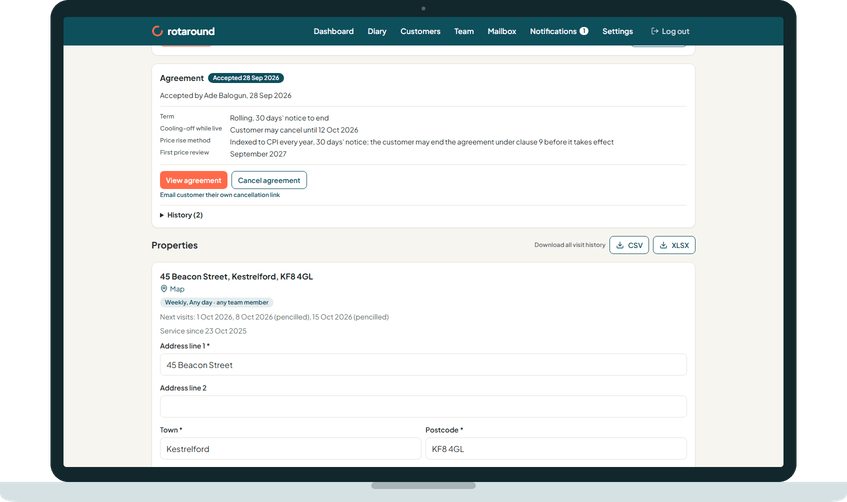
When the customer answers, you are told. An accepted agreement shows its terms on the card. If they decline, you can send an updated agreement at any time. If the 30 days pass with no answer, the link expires and the card says so.
The team member sees nothing of the agreement. Their visits carry on as before.
Good to know#
- Resend email sends the same agreement again. You can use it once a day.
- Withdraw stops the link working straight away, before the customer answers.
- After an agreement has ended, been cancelled or expired, the card offers Prepare a replacement.
- If you have no templates, the dialog offers Build new agreement in Settings instead.
- You can turn reminders off in Settings, Agreements. The agreement is then sent once and waits for the customer's answer.
- Automatic mode and self mode make no difference to sending an agreement.
Related articles#
Not what you needed? Contact us and say what you were trying to do.