What it is#
RotaRound does not send invoices. It gives you a file of every visit ready to invoice, laid out for your accounting software. You upload that file, and your accounting software makes and sends the invoices.
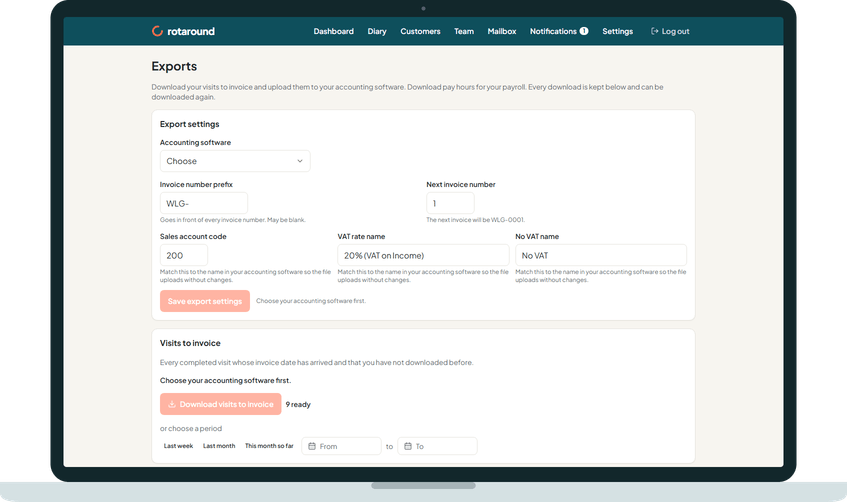
The Accounting software choices on the Exports page are Xero, QuickBooks, FreeAgent, Sage Accounting and A spreadsheet for my accountant.
When to use it#
Use it whenever you invoice: after each week, at the end of each month, or as often as suits your business.
How to do it#
- Press Exports on the dashboard.
- Under Visits to invoice, check how many are ready, then press Download visits to invoice. Press Excel instead for an Excel file.
- To download a set period, use or choose a period: Last week, Last month, This month so far, or a From date and To date. Check the summary line, then press Download this period.
- Open How the upload works and follow the notes for your software.
- Upload the file in your accounting software.
The notes for each choice:
- Xero: each row is one visit, which becomes one line on an invoice. Upload it with Xero's import invoices option. Up to 500 rows go in each file.
- QuickBooks: QuickBooks takes up to 100 invoices and 1,000 rows at a time. If there are more, the download comes as several files, numbered in order. Upload each one.
- FreeAgent: FreeAgent only lets accountants and bookkeepers import invoices. Send this file to yours to upload.
- Sage Accounting: the file is ready for Sage's quick entries, with one row per invoice and the visits on a second sheet. Each customer must already exist in Sage with the same reference as the Accounting reference on their record.
- A spreadsheet for my accountant: a plain spreadsheet to pass on.
For every choice except the spreadsheet, check the columns the first time you upload.
What your customer sees#
Nothing from RotaRound. The customer gets the invoice your accounting software sends. Each line gives the day and the morning or the afternoon, never a clock time.
What happens next#
The invoices are numbered on this first download and stored. They never change. The download is listed in Download history, where you can download it again. Pressing the same download again, in either format, gives the same file.
If a visit changes after it was invoiced, it appears under Changed since invoiced with what changed and the difference in price. Correct those invoices in your accounting software.
Good to know#
- If you are not registered for VAT, check whether Sage wants the VAT columns left out. If so, untick them in Customise columns.
- A period never runs later than yesterday.
- Nothing here differs between automatic mode and self mode.
Related articles#
Not what you needed? Contact us and say what you were trying to do.